If you own a Steam Deck (LCD or OLED) and want to use Recalbox on it, you can!
¶ Introduction
Recalbox is an operating system, just like SteamOS, so it is possible to boot into Recalbox (via the microSD card) without affecting the SteamOS installation.
Therefore, to use Recalbox, you will need to install it on a microSD card and be able to boot into it after turning on the Steam Deck.
It will not be possible to install Recalbox, with SteamOS, on the Steam Deck's internal SSD.
So make sure you have a good quality microSD card (we recommend a Sandisk Ultra/Extreme), with a size that suits your needs depending on the consoles you want to play.
¶ Installing Recalbox on the Steam Deck
To install Recalbox on the Steam Deck, you need to download the PC image (recalbox-x86_64.img.gz), version 10 or higher.
Recalbox installation procedure
¶ Starting Recalbox on Steam Deck
Once the Recalbox PC image is installed on your Steam Deck microSD card, you can insert it into your Steam Deck.
There are two methods for booting from the microSD card:
¶ First method: You mainly use SteamOS and occasionally Recalbox.
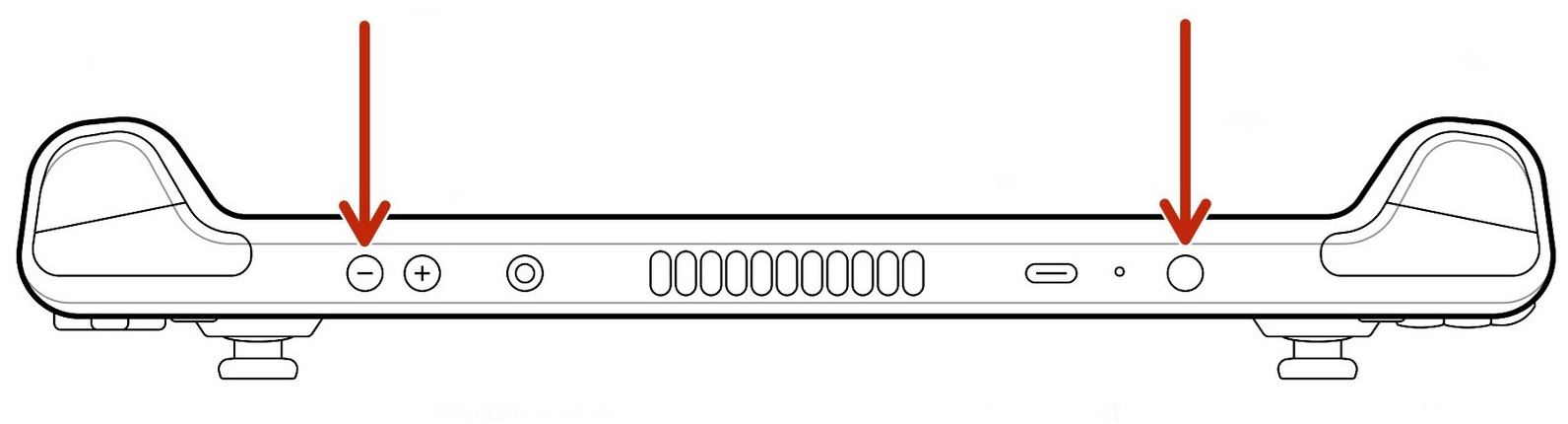
When starting your Steam Deck, hold down the ‘Vol-’ button + the Power button.
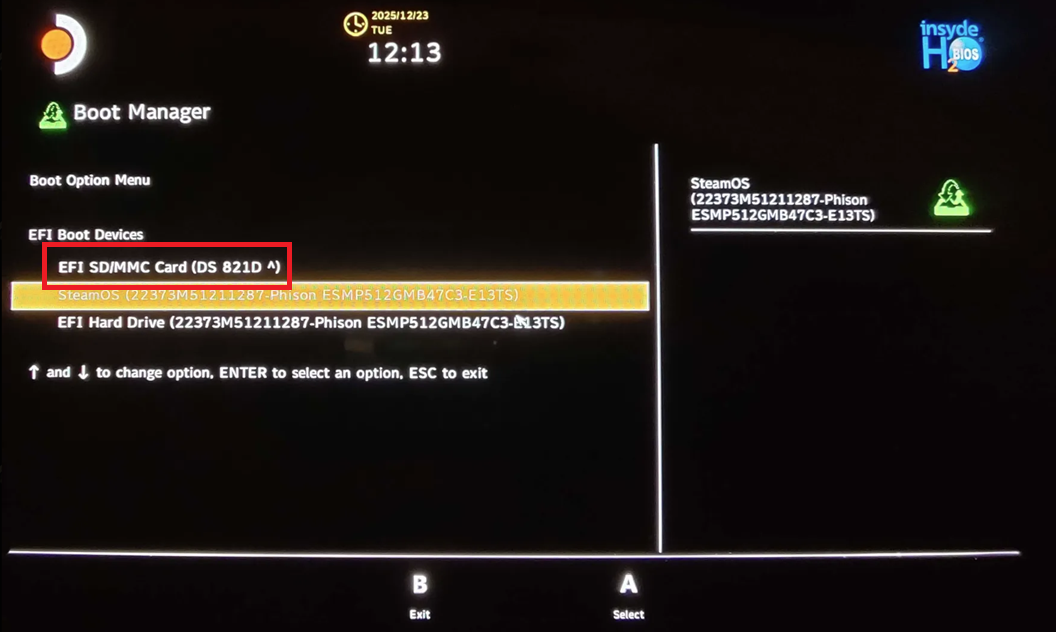
You will then be redirected to a boot device selection window.
Select the ‘EFI SD/MMC Card’ line corresponding to your microSD card to start Recalbox.
Second method: You mainly use Recalbox and occasionally SteamOS.
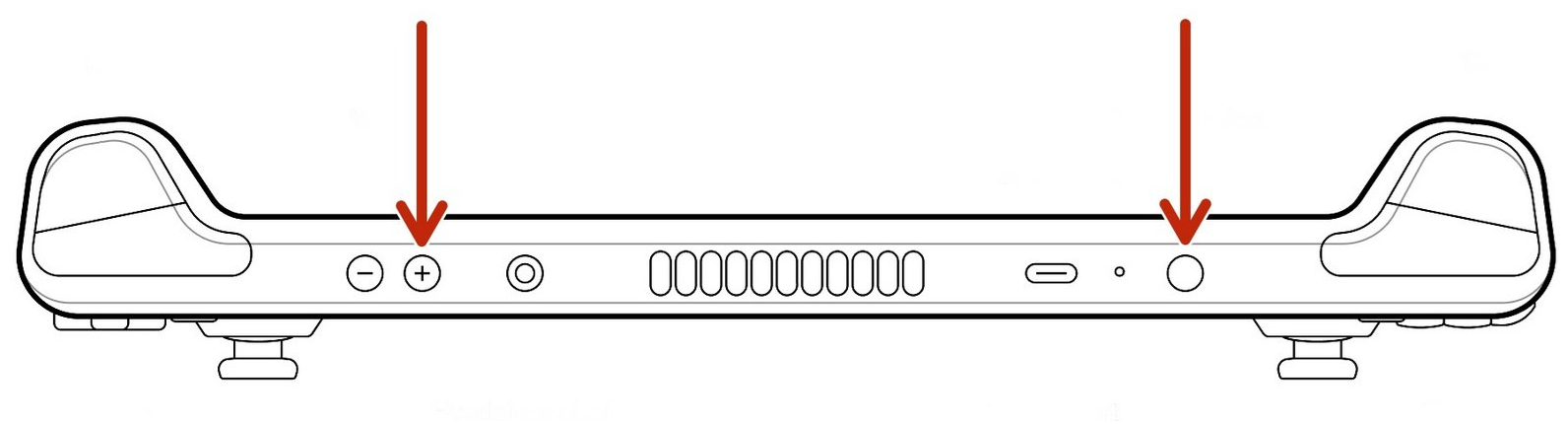
When starting your Steam Deck, hold down the ‘Vol+’ button + the Power button.
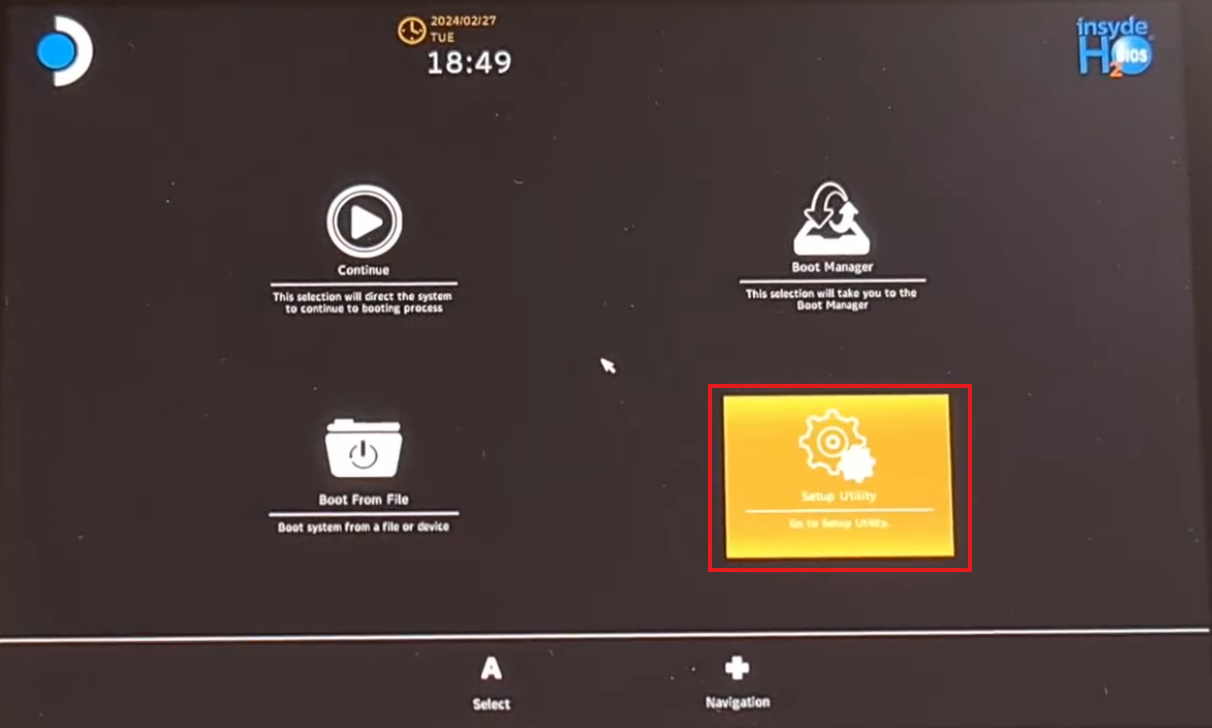
You will then be redirected to the Steam Deck BIOS. Select the ‘Setup Utility’ option.
Go to the ‘Boot’ tab, disable the ‘Network Stack’ function and select “First” for the ‘Add Boot Options’ option. Finally, save and exit the BIOS.
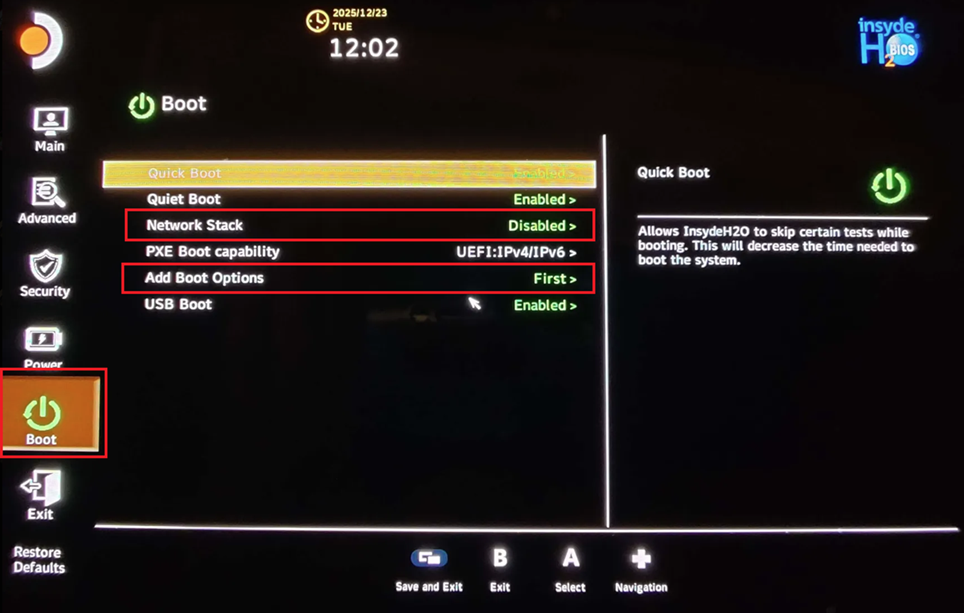
This method works as follows:
When the Steam Deck starts up, if the Recalbox microSD card is inserted, it will boot into Recalbox; if it is not inserted, it will boot into SteamOS.
¶ Features supported by Steam Deck for Recalbox
Here is a list of features supported by Steam Deck for Recalbox:
- Emulation of the most demanding consoles up to PS2 and Xbox
- Use of the ‘Steam’ button as a hotkey
PDF memo for hotkey commands - Touchscreen can be used for consoles that support it (Nintendo DS)
- Right touchpad can be used as a mouse for consoles that support it (ScummVM/DOS/...)
Mouse mode is activated by holding down the ‘...’ button. Do the same to return to ‘Joypad’ mode. A sound confirms the change. The Steam Deck LCD does not support clicking on the touchpad; you will need to use the triggers as mouse buttons. The Steam Deck OLED supports clicking.
- Support for Wi-Fi (2.4 or 5Ghz) and Bluetooth
- Support for standby mode
In general, it is best to use standby mode after pausing your game or in the Recalbox menu. There is a risk of malfunction if you put your console into standby mode while it is in full operation.
- Volume and brightness can be adjusted using the ‘Vol+’ and ‘Vol-’ buttons (hold down the ‘Steam’ button to adjust the brightness)
- A dock or hub connected to the USB-C port can be used
What is supported:
- USB-A/USB-C ports for connecting additional peripherals (wired controllers/dongles/external storage, etc.) or charging the console
- Ethernet port
What is not supported:
- Using the HDMI/DisplayPort/USB-C port to connect an external display
¶ Known issues
Here is a list of known issues when using Steam Deck on Recalbox:
-
Using an external display with Steam Deck
At present, it is not possible to connect your Steam Deck to an external display (a PC monitor or TV).
The Steam Deck is currently intended for portable use only, but the use of an external display will be supported in the future. -
Standby/Wake up with the Steam Deck
When waking up from standby, the screen may not display completely. To fix this issue, put the device back into standby and then wake it up again, and the screen should display properly. -
Refresh rate on Steam Deck OLED only
The refresh rate is currently fixed at 90Hz on Steam Deck OLED, unlike most emulated games which generally require between 50Hz and 60Hz, so micro-stuttering may occur, affecting the emulation of certain games.
¶ FAQ
-
What size SSD should I get for the Steam Deck?
Regardless of the size of the Steam Deck's SSD, you will not be able to install Recalbox on it!
Therefore, opt for the smallest SSD size if you intend to use your Steam Deck mainly for Recalbox. -
What is the recommended size for the microSD card with Recalbox on Steam Deck?
Recalbox requires at least 32GB for PCs, but since the recommended use will be via a microSD card alone, containing all of Recalbox's data, it is preferable to start with a high-quality 128GB or even 256GB microSD card (we recommend a Sandisk Ultra/Extreme).
If you want to play consoles that use CDs, you may quickly need more storage space. In this case, opt for a 512GB or even 1TB microSD card. -
Is it possible to use SteamOS and Recalbox at the same time? / Is it possible to run a game on Recalbox from SteamOS?
No, SteamOS and Recalbox are two different operating systems, so you will need to shut down one to access the other, and vice versa. -
Which consoles can the Steam Deck emulate?
The Steam Deck can emulate up to PS2/Gamecube/Wii/Xbox, generally without difficulty. -
Can I use or add external storage other than a microSD card for Recalbox?
Yes, it is possible, but you will lose portability and/or functionality.
When using it portably, the USB-C port will be occupied by this external storage, so you will lose portability and functionality (potential bulkiness, and also the inability to recharge it).
When using a dock or USB-C hub, you will lose portability due to the bulkiness of the equipment used. -
Which button is used as the ‘Hotkey’ on the Steam Deck?
By default, the ‘Steam’ button will be used as the ‘Hotkey’. -
How do I change the screen brightness on the Steam Deck?
Hold down the ‘Steam’ button and press the ‘Vol-’ or ‘Vol+’ buttons depending on the desired brightness level. -
Is it possible to configure the Steam Deck's exclusive buttons (back buttons/touchpads)?
Yes, it is possible, but please note that via the Recalbox menu for configuring your controller, it is not possible to assign multiple keys to a single defined function. To do this, you will need to go through the options of the relevant emulator to make this setting (advanced use of Recalbox).